

For all coffee enthusiasts, Starbucks has long been their preferred coffee shop. However, if you fall into the category of people who like drinks with less caffeine, you need not worry because Starbucks also offers decaf beverages for you to enjoy.
And not only that, but Starbucks has also launched its Starbucks app. It is a mobile application where you can order ahead and pick it up at any participating Starbucks branch. The app is a comprehensive program featuring store location finders, track and redeem rewards and look for store promotions.
Here, we will teach you how to order decaf coffee on Starbucks app. You will enjoy your favorite decaf drinks more easily with the Starbucks app.
Also read: What are the Best Online Stores for eBooks?
How to Order Decaf on Starbucks app
The Starbucks app’s ability to modify drinks without making you feel as though you are disturbing the barista is by far its best feature. Ordering a decaf iced coffee or a decaf latte has never been more convenient. Just follow the steps below and you are good to go.
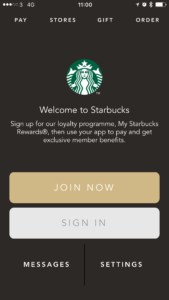
1. Sign in using the Starbucks app..
2. Select “Order” by tapping it.
3. “Coffee” should be chosen.
4. From the list of available coffee types, select “Decaf.”
5. Choose your favorite size and any further customizations you like.
6. Click the “Place Your Order” button to proceed with app-based payment.
Now, that you have done it, you can relax, wait a while and enjoy your cup.
How to Order Decaf Latte on Starbucks app
If you prefer that your drinks be a decaf latte, then here is how to order a decaf latte on Starbucks app.
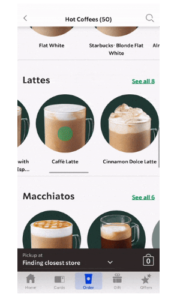
- Select your Drink Type. Start your app, choose the latte type—hot or iced—and click “Select
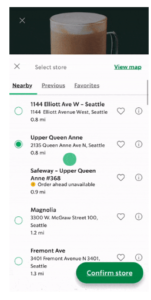
- Enter Location. The drop-down menu allows you to select the locations. It won’t necessarily be the nearby branch, but rather the one you like most.
3. Choose your Drink Size. You must specify the drink’s size. The app offers all drink sizes, including short, tall, grande, and venti, much like the physical store.
4. Select Espresso and Shot Options. Choose the desired decaf from the espresso roast selections. You can select decaf only or combine it with regular roast.
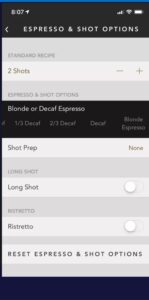
5. Customized your drink. There are more options to customize your coffee in the customization section, including several espresso alternatives. You could also use decaf espresso here if you skipped the previous step.
6. Place your order. After selecting your espresso, place your order and proceed. You may get a vague estimation of the order’s arrival time via the app.
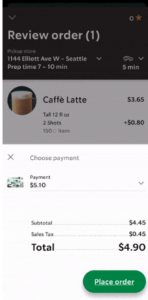
It is reasonably easy to navigate the app and order your decaf drinks from Starbucks. These steps also apply to how to order decaf iced coffee on Starbucks app.
How to Pay for your order on Starbucks App
There are a few different ways to pay at Starbucks. You can pay with cash, credit, or debit. You might also use a Starbucks gift card to pay. Also, you can pay for your purchase with your Starbucks rewards card as well.
By using the reliable Starbucks app, you can enjoy your favorite caffeinated and decaf drinks without the hassle of waiting inside the store. You can order ahead and just pick it up when it is ready.
Now that you know how to order decaf on Starbucks app 2021, let us find out how to pay for it.
For on-the-go coffee purchases, the Starbucks app is excellent. Following are the steps for using the Starbucks app to pay for your coffee in person:
1. Launch the Starbucks mobile app and log into your account.
2. Simply press the “Pay” button.
3. Decide to go “In Store.”
4. Select the amount you want to pay.
5. The transaction must be finished by tapping the “Pay” button.
It’s quick and simple to get your caffeine fix by paying for your coffee using the Starbucks app.
With the Starbucks Rewards loyalty program, using the Starbucks app is the quickest way to pay and accrue Stars. By installing the app, locating local stores, placing an order in advance, and using contactless payments, customers may also make purchases. In addition to credit and debit cards, Starbucks also takes Apple Pay, Google Pay, PayPal, and Starbucks Cards.
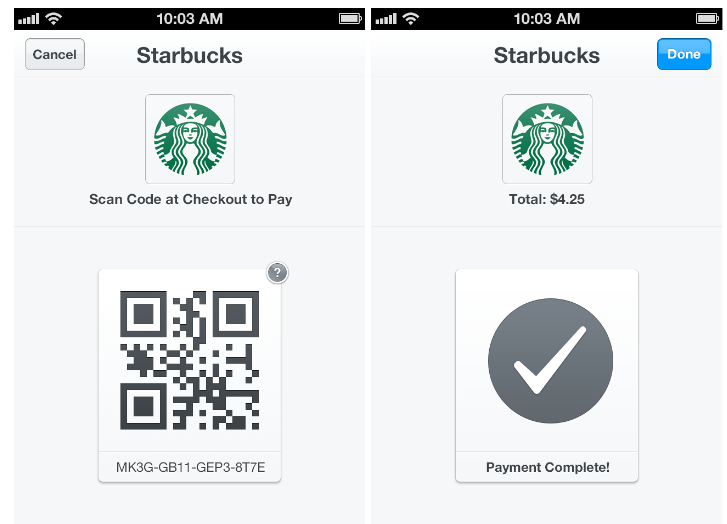
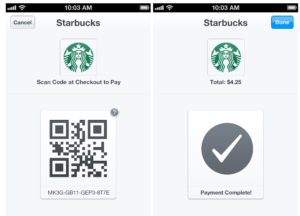
Simply tap “Scan” on the home screen of the Starbucks app to make an in-store payment. Use the Starbucks app’s QR code scanning feature, choose “Scan Only,” and then hit one of the payment options—Pay With Cash, Credit/Debit Card, or Mobile Wallet—to complete your transaction.
Additionally available as a payment method at participating Starbucks shops is Apple Pay. The Google Pay app provides access to Google Pay. Through the Starbucks app for Android, customers may replenish their Starbucks Cards using Google Pay.
Conclusion
The Starbucks app makes it incredibly easy to order and pick up coffee quickly. You may still enjoy your favorite drink by ordering it through the app if you don’t have the time to wait, relax, and sip in one of their physical locations. Just follow our guide above on how to order decaf on Starbucks app.
Also check: 8 Best Parking Lot Apps for iPhone