


Navigating the TV volume control is just one of the many things a remote control can be used for. It is quite simple to watch and stream movies and television shows at the volume you choose thanks to the volume up and volume down buttons. However, how to turn up volume on Samsung TV without remote if unavoidable circumstances prevent you from using one?
How to Turn Samsung TV Volume up without Remote
In this article, we’ll show you how to raise the volume of your Samsung smart TV without using a remote.
Method 1: Using the Samsung TV Button

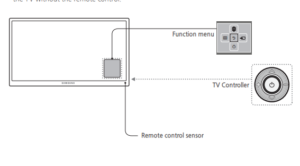
The Samsung TV unit’s built-in button is the ideal substitute for remote control when controlling the volume on a Samsung TV. The fact that a Samsung TV has just one button—the Power Button—would, however, strike you as odd. When you press this particular button, you will find that your unit will just turn on and off.
So how will this turn the volume up or down of your Samsung TV? It appears that a single button on many Samsung TVs serves two purposes. Once your finger is on the button, you must almost lean it in one direction or the other to navigate the controls of your TV volume. It works similarly to a seesaw. You need to press either both edges to control the volume of the TV
The above-mentioned method though works for newer Samsung TV models. If your model is released previously, then there is a different approach to how to turn volume up on Samsung tv without remote using the TV’s single power button.
Here are the steps on how to do it for older Samsung models with a single button.
- To turn on and off the TV, press and hold the button. Press the button normally to display a menu when the TV is on. Press the button once more to cycle through the choices while the menu is open.
- You can adjust the TV’s volume by cycling through the volume settings. To choose a volume control, a slightly longer pressing of the button is required. The lengthy press would turn the TV off if the menu wasn’t active. When the menu is open, selecting an option requires a long press.
Method 2: Using the Buttons under the TV’s Front Panel
If your Samsung TV unit has five buttons under the front panel or down in front of the TV, then you can control the volume using some of these buttons.

The options menu will appear if you hold down the button in the center for a few seconds. The options that display on the screen can be chosen by using the four arrow buttons that surround the button in the center.
The arrow buttons must be used to go to the volume controls, and the middle button must be repeatedly pressed to pick the correct volume control.
Method 3: Using the Buttons on the Back of the Samsung TV
You can also check your Samsung TV if it has buttons on the back. You can adjust the volume by using these buttons. Generally, there will be five buttons on the back and the middle one is the power button. While the TV is already powered on, you can press this power button once to display the menu. The buttons on the top and bottom of the power button will let you choose from among the options on the menu. While the buttons on the left and right sides are used to control by increasing or decreasing your chosen options. For volume control, you can use the right and left buttons to increase or decrease it.
Method 4: Using the Smartthings App
You can also control the volume of your Samsung TV through third-party applications. Samsung has an official app called SmartThings App and you can use this to control and navigate your TV including the volume. You have to download the SmartThings app on your mobile phone and make sure to link your Samsung TV to it.
Step 1. On your smartphone, click the SmartThings app.
Step 2. On the Add (‘+’ icon) screen, select Device.
Step 3. After selecting TV, select Samsung.
Step 4. Tap Start after one more tap on the TV.
Step 5. After choosing your location and the room where you watch TV, hit Next.
Step 6. For Samsung TVs manufactured before 2020, a PIN will be necessary to connect to the TV. Your mobile device should have connected to your Samsung TV successfully.
These are the steps on how to turn Samsung tv volume down without remote using SmartThings App.

Step 1. On your smartphone, open the SmartThings app and choose the TV device card.
Step 2. In addition to other options, you can select Content search, Remote, and Apps.
Step 3. You can use the mobile keypad to search the TV content in the Search menu and click the phone to start the TV content.
Step 4. You may adjust the TV channel, volume, home, and settings using the remote menu.
You may also like: Smart TV vs Android TV: Which is Better?
Conclusion
The remote control is probably a television’s best buddy because it helps in navigating the unit easier and quicker. However, if remote controls are not available. There are other options to control Samsung TVs. Our guide on how to turn up volume on Samsung tv without remote should help you.